

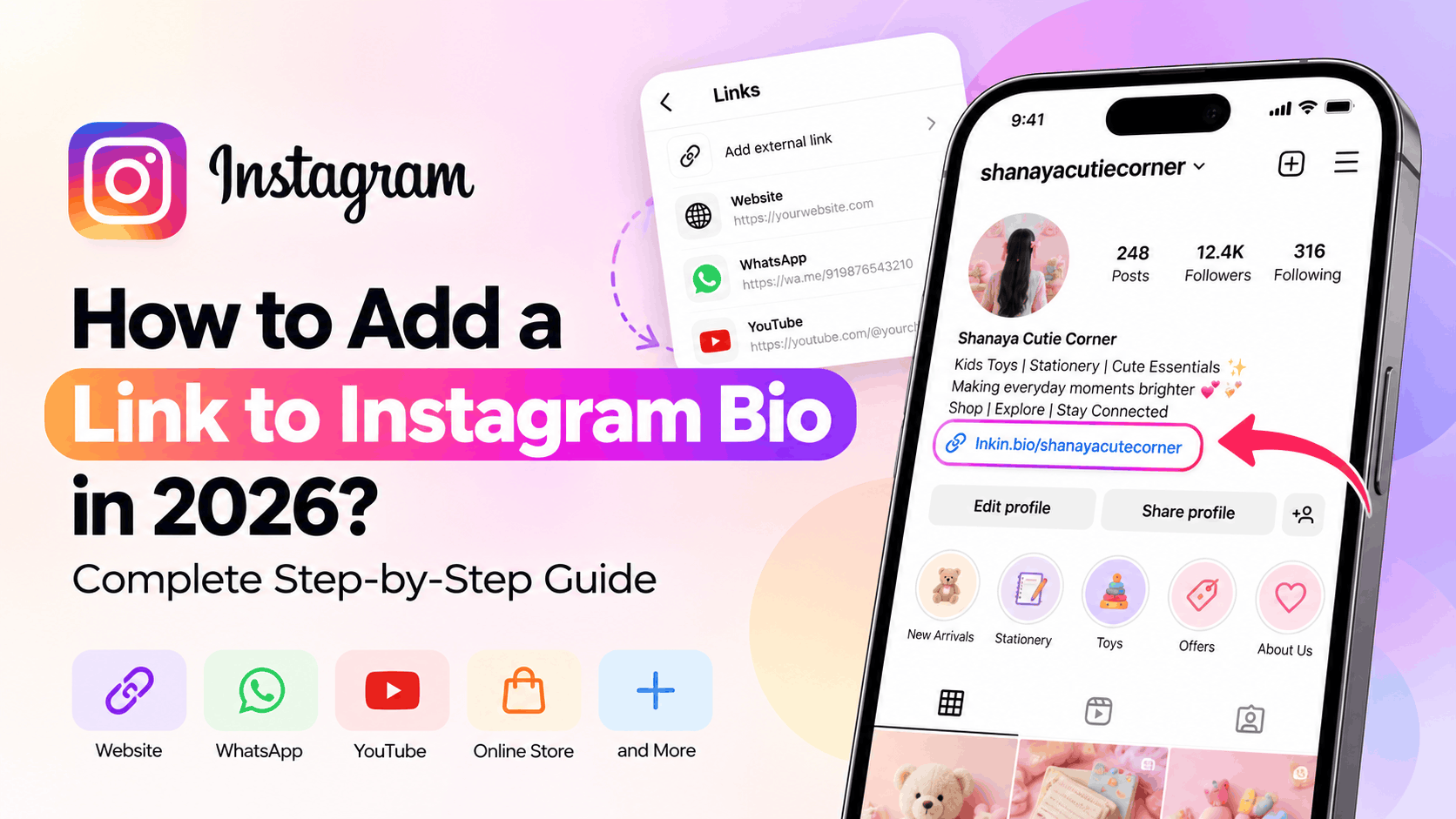
How to Add a Link to Instagram Bio in 2026 – A Complete Step-by-Step Guide for Android and iPhone.
How to Add a Link to Instagram Bio in 2026? (Complete Step-by-Step Guide)
Want to add a clickable link to your Instagram bio but can't figure out where the option is? You're not alone.
Whether you want to share your website, online store, YouTube channel, WhatsApp contact, portfolio, or booking page, adding a link to your Instagram profile makes it easier for visitors to reach you outside Instagram.
The good news is that Instagram allows you to add up to five external links to your profile, and you don't need a business account or a certain number of followers to use the standard bio-link feature.
In this guide, you'll learn how to add a link to your Instagram bio on Android and iPhone, manage multiple links, fix links that aren't clickable, and create a single bio page that connects all your important destinations.
Quick Answer: Open Instagram → Go to your Profile → Tap Edit profile → Links → Add external link → Paste your URL → Tap Done.
That's it! Your clickable link will appear on your Instagram profile.
What Is a Link in Instagram Bio?
An Instagram bio link is a clickable website address displayed on your Instagram profile, usually beneath your profile description.
It allows visitors to open an external destination directly from your profile.
For example, imagine you're running an online clothing business. Your Instagram posts showcase your products, but visitors need somewhere to browse your collection or place an order.
Instead of asking them to search for your website, you can add your store URL to your Instagram bio.
When someone visits your profile, they can simply tap that link.
You can use an Instagram bio link to share:
Your personal or business website
An online store or product collection
Your YouTube channel
A WhatsApp contact link
A portfolio or resume
An appointment-booking page
A blog or newsletter
A single page containing multiple important links
For creators, freelancers, small businesses, and brands, a bio link is a simple way to turn profile visits into meaningful actions.
How to Add a Link to Instagram Bio on Android or iPhone
The process is almost identical on Android and iPhone. Some button labels may look slightly different depending on your device and Instagram app version.
Follow these steps to add your first clickable link.
Step 1: Open Instagram and Go to Your Profile
Open the Instagram app on your smartphone and sign in to your account.
Tap your profile picture in the bottom-right corner of the screen.
This opens your Instagram profile, where you can see your bio, posts, followers, and profile settings.
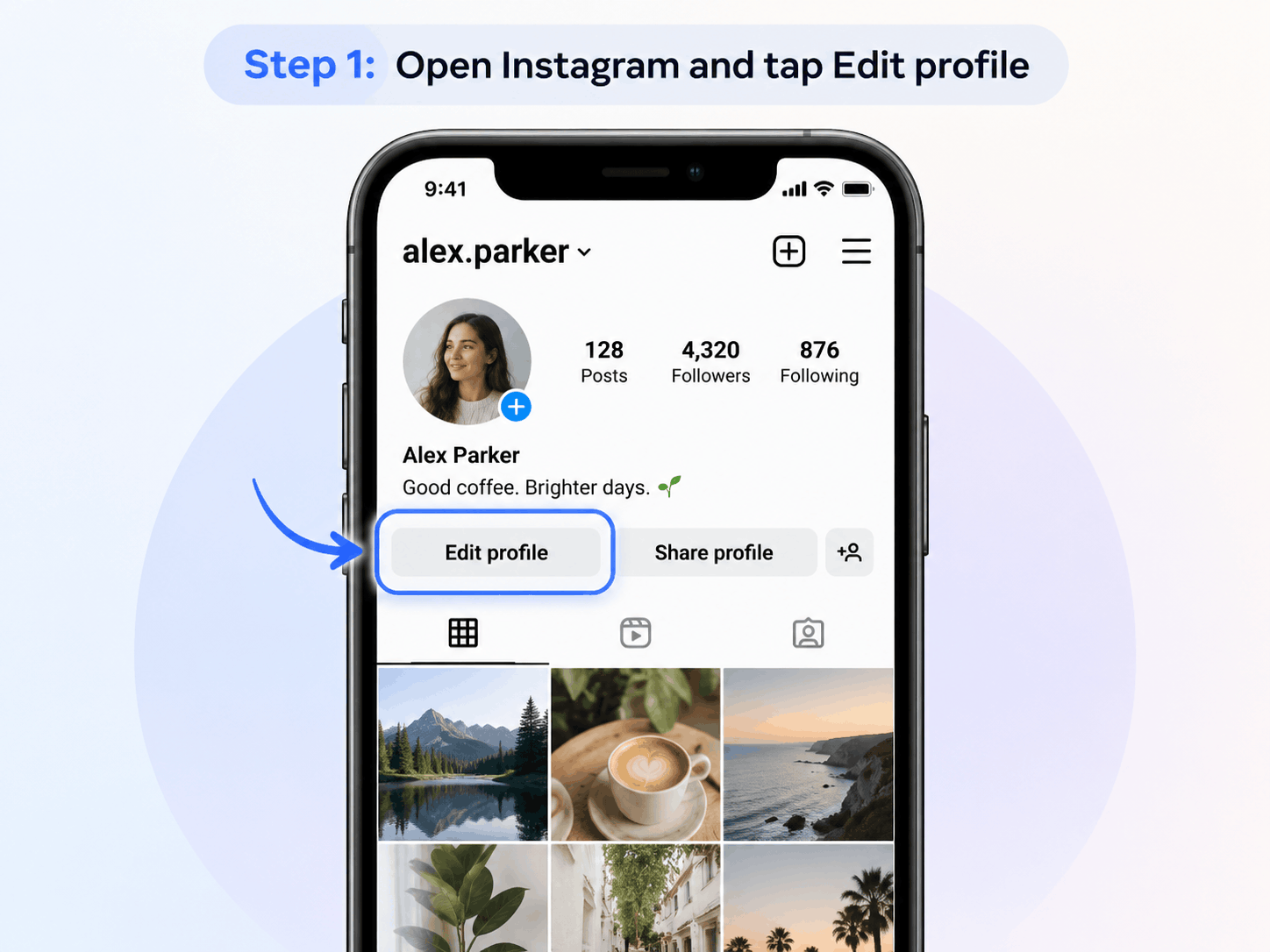
Step 2: Tap Edit Profile
Under your profile information, find the Edit profile button.
Tap it to open your profile settings.
You'll see options for managing details such as your name, username, bio, and profile links.
Step 3: Find the Links Option
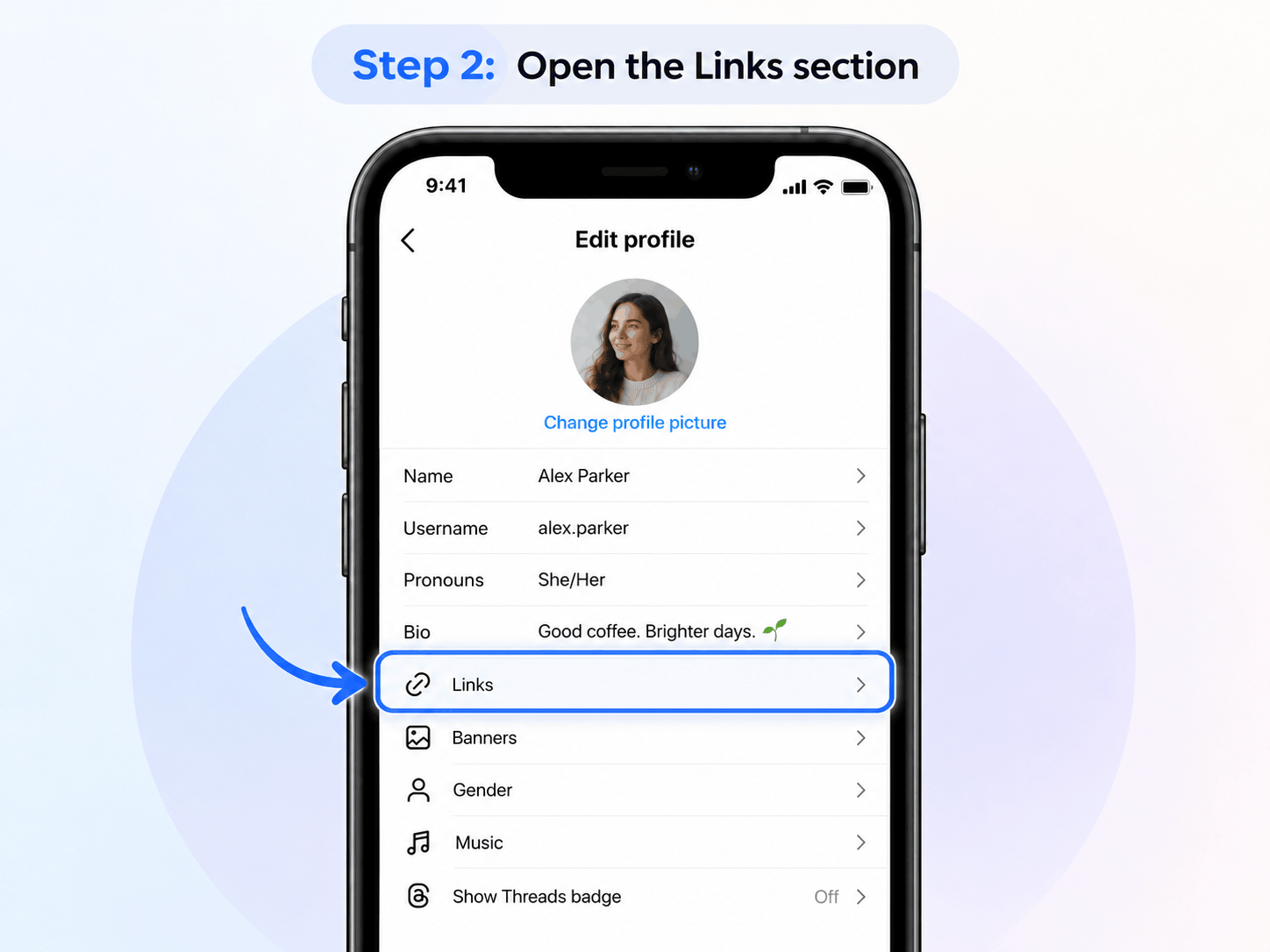
Inside Edit profile, look for the section labelled Links.
Tap it.
This is where Instagram allows you to add, remove, and organize external website links.
If you've never added a link before, the section may be empty.
Step 4: Tap Add External Link
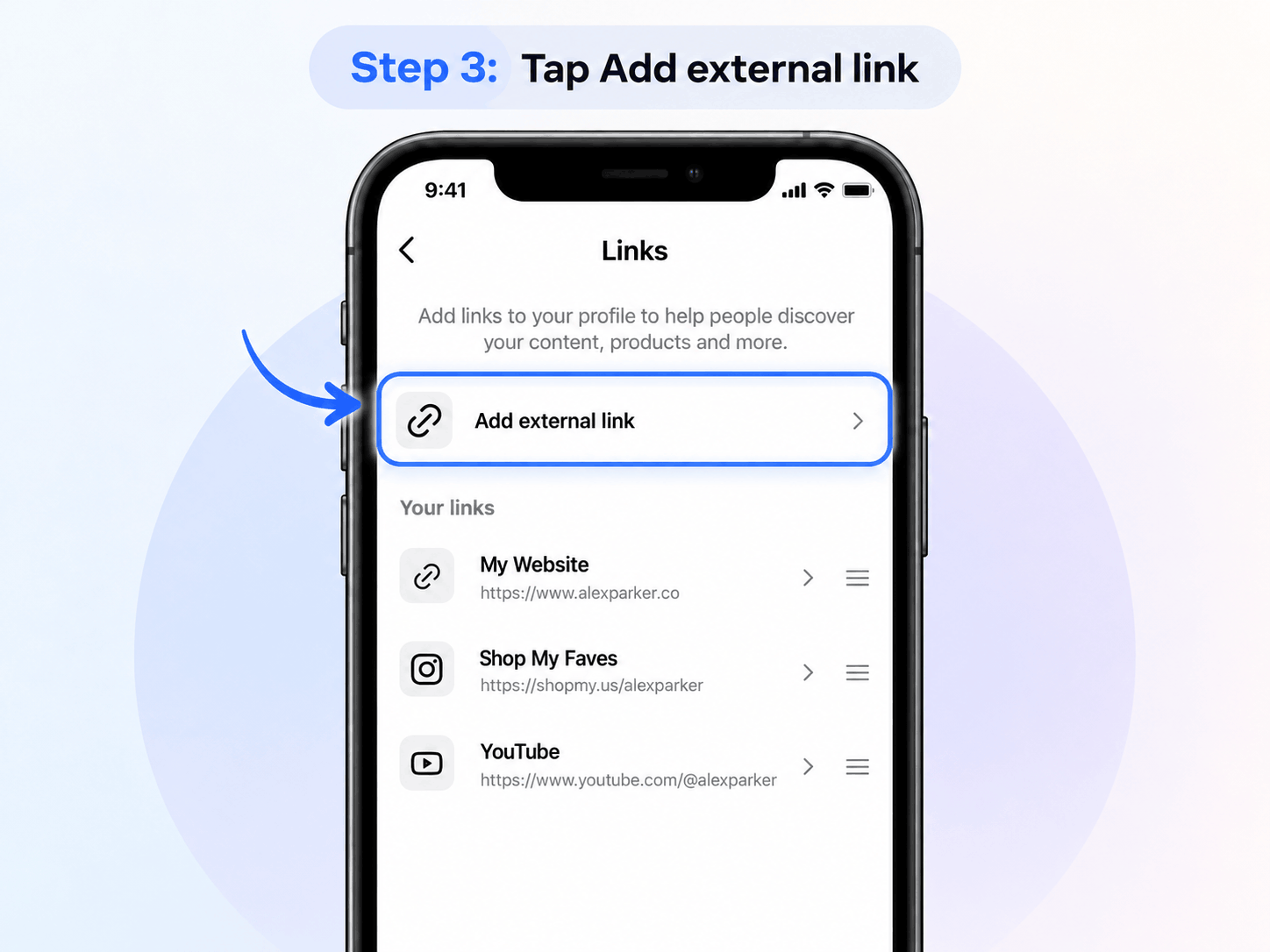
Select Add external link.
Depending on your app version, the option may be labelled Add link.
Instagram will open a screen where you can enter your website address.
Step 5: Enter Your Website URL
Paste the complete website address you want to share.
For example:
https://www.example.com
Or, if you've created a bio page using LnKin.bio:
https://lnkin.bio/yourusername
Always use the correct URL, preferably starting with https://.
You may also see a Title field where you can describe your link.
Instead of a generic label such as "Website," choose something that tells visitors what they'll find.
Examples:
Shop Our Collection
Explore My Portfolio
Book an Appointment
Watch My Videos
View All My Links
A clear title helps visitors understand where the link leads.
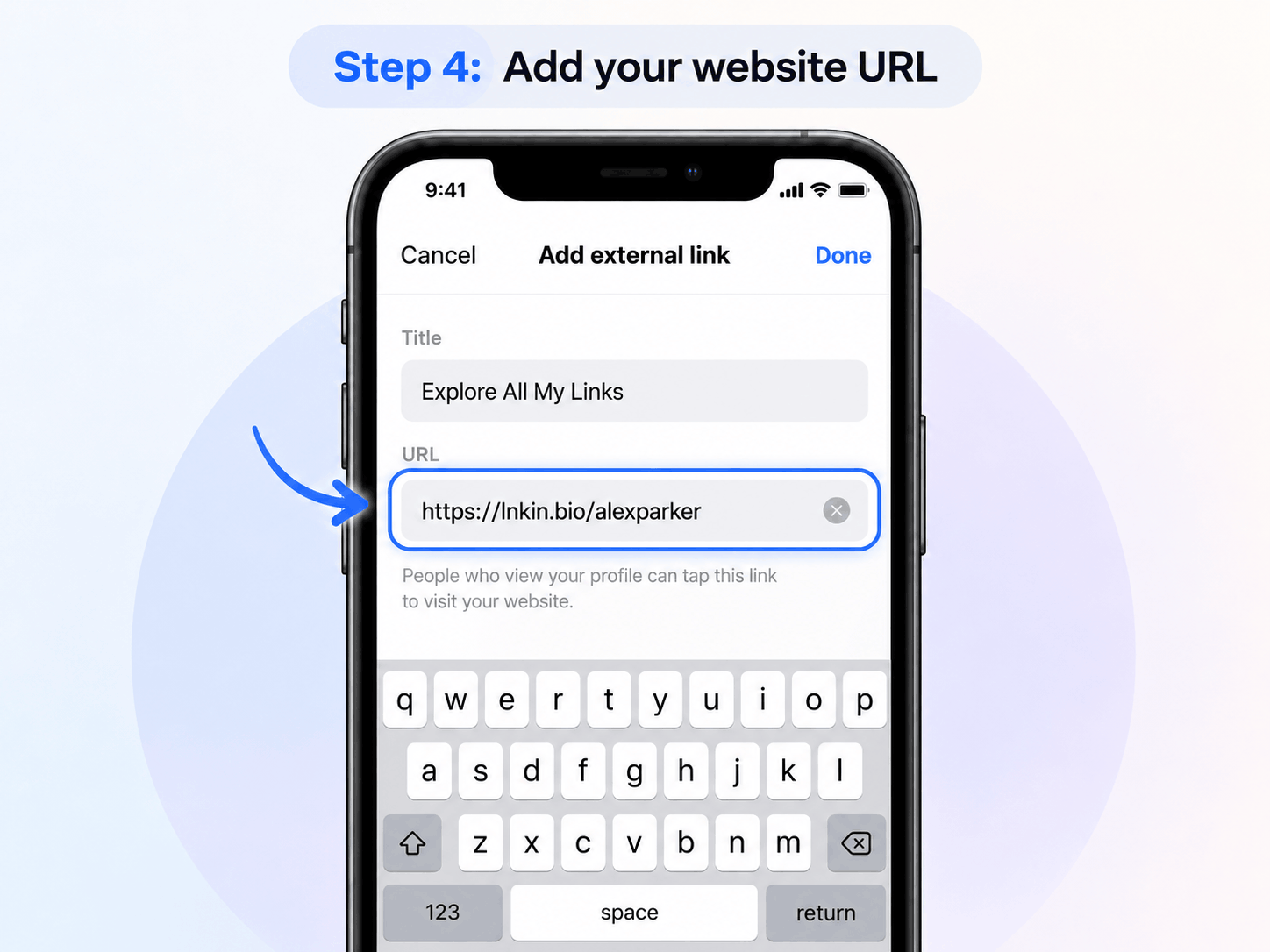
Step 6: Save Your Link
After entering the URL and title, tap Done, the checkmark, or the equivalent save option.
Return to your Instagram profile.
Your newly added link should now appear beneath your bio information.
Step 7: Test Your Instagram Bio Link
Don't skip this step.
Open your profile and tap the newly added link.
Check whether:
The correct website opens.
The page loads properly on mobile.
The destination is available to visitors.
There are no unexpected errors or broken redirects.
Visitors can understand what to do after opening the page.
You can also test the link using another Instagram account.
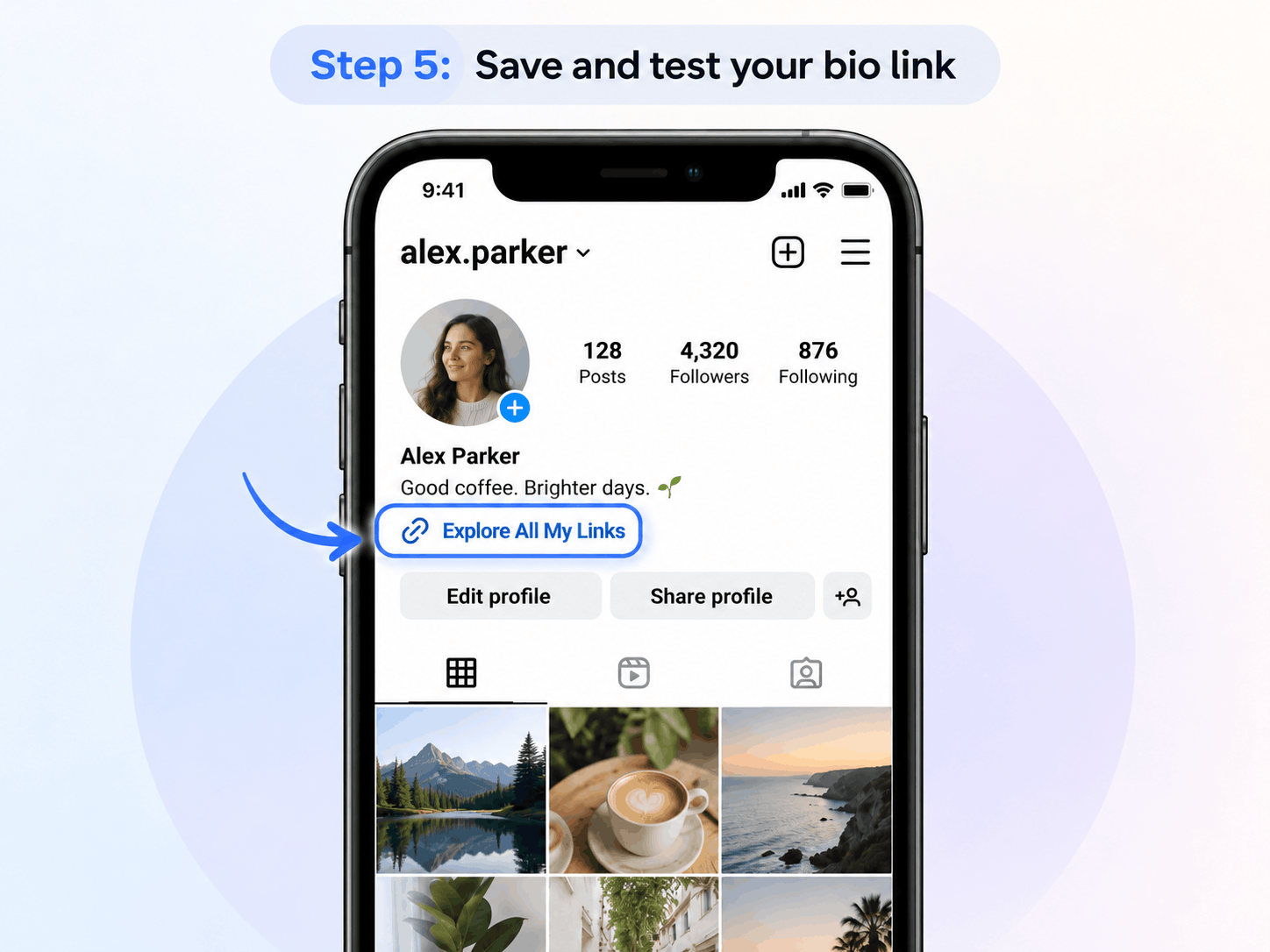
Congratulations! You've successfully added a clickable link to your Instagram bio.
How to Add Multiple Links to Instagram Bio in 2026
What if you want to share your website, WhatsApp, YouTube, and online store at the same time?
Instagram supports up to five external website links on a profile.
You can add them through the same Links section.
Steps to Add Multiple Instagram Bio Links
Open Instagram and visit your profile.
Tap Edit profile.
Open Links.
Select Add external link.
Enter your second website URL.
Add a descriptive title and save it.
Repeat the process to add more links, up to Instagram's supported limit.
For example, a small business could add:
Official Website
Shop Products
Contact on WhatsApp
Watch Product Videos
Book a Consultation
Instagram typically displays the first link directly on the profile, with an indication that additional links are available.
Visitors can tap the links area to view the other destinations.
How to Reorder Instagram Bio Links
The order of your links matters because visitors notice the first link most easily.
To rearrange them:
Open Edit profile → Links.
Tap Options or the three-dot menu.
Select Reorder links.
Press and hold the link you want to move.
Drag it to your preferred position.
Save your changes.
Put your most important destination at the top.
For example, an online store might prioritize its product collection, while a consultant might prioritize appointment bookings.
Instagram's Five-Link Limit: Is It Enough?
For many personal users, five links are sufficient.
But creators and growing businesses often need to share more than five destinations.
Consider a content creator who wants to promote:
A YouTube channel
A personal website
An online course
An affiliate product
A newsletter
A digital store
A latest video
A collaboration form
A WhatsApp community
That's already nine different destinations.
Instagram's five native website links cannot display all of them individually.
And even if five links are enough, visitors may need to open the additional-links list before finding the destination they want.
This is where a dedicated link-in-bio page becomes useful.
How to Add Unlimited Destinations Using a Link-in-Bio Page
Instead of adding every website separately to Instagram, you can create one public page containing your important links.
You then add that single page URL to your Instagram profile.
For example, instead of sharing multiple separate addresses, you could use:
https://lnkin.bio/yourusername
Visitors open that one page and choose where they want to go next.
This approach can help you keep your Instagram profile simple while giving followers access to your wider online presence.
Create Your Own Bio Page with LnKin.bio
You can use LnKin.bio to create a personalized link-in-bio page.
Here's the general process:
Step 1: Visit LnKin.bio
Open https://lnkin.bio and get started with an account.
Step 2: Set Up Your Public Profile
Add your profile information, such as your display name, image, and description.
Keep your profile consistent with your Instagram identity so visitors recognize you immediately.
Step 3: Add Your Important Links
Add the destinations you want people to explore.
For example:
Visit My Website
Shop My Products
Watch My Latest Video
Contact Me
Explore My Portfolio
Arrange the most important links where visitors can find them easily.
Step 4: Personalize Your Bio Page
Use the available appearance and profile customization options to make the page match your brand.
A consistent look makes the transition from Instagram to your bio page feel more natural.
Step 5: Copy Your Public Bio Page URL
After setting up your page, copy its public address.
For example:
https://lnkin.bio/yourusername
Step 6: Add the Link to Instagram
Go back to Instagram and open:
Edit profile → Links → Add external link
Paste your LnKin.bio address.
Give it a title such as:
Explore All My Links
Save your changes.
Now your Instagram followers can access your important links through one destination.
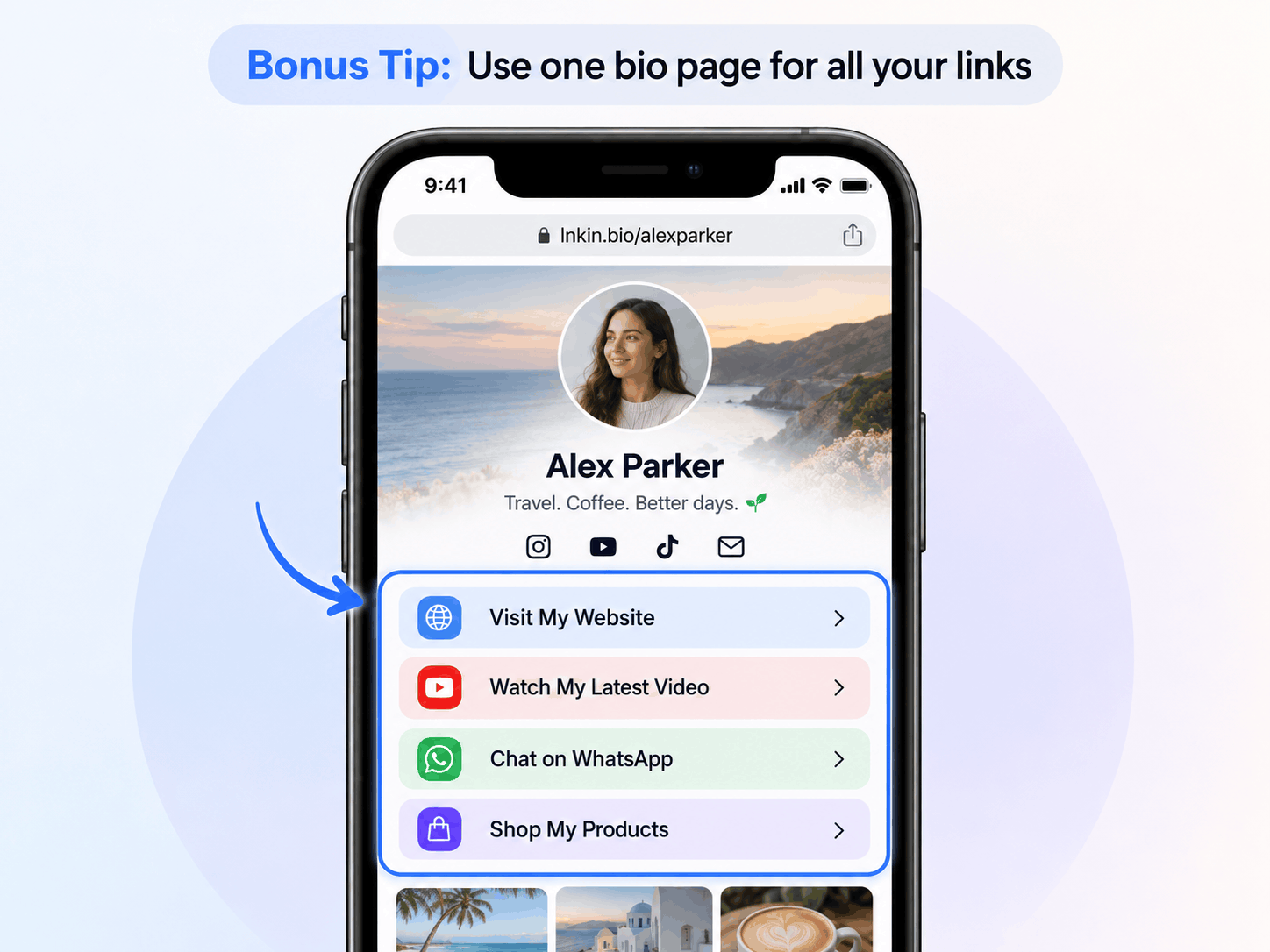
Why Use a Dedicated Bio Page?
A dedicated bio page can offer several practical advantages.
One link for your online presence
Instead of making visitors search through several separate platforms, you give them one central destination.
Easier updates
When your featured product, video, or promotion changes, you can update the relevant link on your bio page without repeatedly changing the URL displayed on Instagram.
Better organization
Visitors can choose the action most relevant to them.
Brand consistency
Your bio page can carry the same visual identity as your Instagram profile.
A clearer next step
A thoughtfully arranged page can help visitors find a product, service, or contact method without unnecessary confusion.
For people managing multiple online destinations, this is often more useful than simply adding more links.
How to Edit or Remove a Link from Instagram Bio
Need to update an old website address or delete a broken link?
You can manage your saved links directly from Instagram.
To Edit a Link
Open your Instagram profile.
Tap Edit profile.
Select Links.
Tap the existing link you want to change.
Update the URL or title if editing is available.
Save your changes.
If your version of Instagram does not offer editing for that link, remove it and add the corrected address again.
To Remove a Link
Go to Edit profile → Links.
Select the link.
Tap Remove link.
Confirm the removal if prompted.
The link will no longer appear on your Instagram profile.
Before removing a frequently used link, consider whether you can update the destination instead. This can reduce confusion for returning visitors.
Can You Add an Instagram Bio Link from a Computer?
As of October 2026, Instagram's documented method for adding and managing external profile links is through its Android and iPhone apps.
The web version of Instagram may allow other profile edits, but Instagram's website-link management feature is documented as unavailable on computers.
If you're using a desktop browser, the easiest approach is:
Copy the website URL you want to share.
Send it to your phone.
Open Instagram on your mobile device.
Go to Edit profile → Links.
Paste the address and save it.
Once saved, your profile link can be viewed by people visiting your Instagram profile on supported devices and browsers.
Why Is My Instagram Bio Link Not Clickable?
This is one of the most common Instagram bio problems.
Fortunately, there are several straightforward things you can check.
1. You Pasted the URL into the Bio Text Field
This is a common mistake.
Instagram's Bio text field is not the same as its Links section.
A website address typed as ordinary bio text does not become a standard clickable external website link.
Solution: Add the URL through Edit profile → Links → Add external link.
2. The URL Is Incorrect
An incomplete or misspelled URL can prevent visitors from reaching the right destination.
For example:
htps://example.com
contains a typo.
Use a properly formatted address such as:
https://example.com
Double-check the domain name, path, and any additional parameters before saving.
3. Your Instagram App Is Outdated
Instagram regularly changes its app interface.
If you cannot find the Links option, try updating Instagram through Google Play or the App Store.
Restart the app and check the Edit profile section again.
4. Your Website Is Not Working
Sometimes the Instagram link itself is fine, but the destination website is temporarily unavailable.
Open the address directly in Chrome, Safari, or another browser.
If the website does not load there either, investigate the website or hosting issue.
5. Instagram Restricts the Destination
Instagram may restrict certain URLs for security or policy reasons.
If you receive a warning that a link cannot be added or opened, check whether the destination is safe, publicly accessible, and compliant with Instagram's policies.
Avoid suspicious redirects, misleading URLs, or attempts to bypass platform restrictions.
6. You Have Already Added Five Links
If you've reached Instagram's native five-link limit, you may need to remove an existing link before adding another.
Alternatively, you can use a dedicated bio page to organize more destinations under one Instagram link.
7. The Link Opens but the Page Looks Broken
A page may work on a desktop browser but display incorrectly inside Instagram's in-app browser.
Test your destination on a smartphone.
Check that its buttons, navigation, images, and forms work on small screens.
If the problem appears only inside Instagram's browser, compare the result with the same URL opened in a regular mobile browser.
How to Add a WhatsApp Link to Your Instagram Bio
Many small businesses use Instagram to discover customers and WhatsApp to answer enquiries.
You can connect the two by placing a WhatsApp chat link in your Instagram bio.
A commonly used WhatsApp click-to-chat format is:
https://wa.me/919876543210
This is an example number only.
Replace it with your actual number in international format, without the plus sign, spaces, brackets, or hyphens.
To add it:
Prepare your WhatsApp click-to-chat URL.
Open Instagram → Edit profile → Links.
Tap Add external link.
Paste the WhatsApp URL.
Give the link a title such as "Chat on WhatsApp."
Save and test it.
For businesses, a simple call to action can work better than a vague label.
For example:
"Message Us for Prices"
or
"Ask About Our Services"
If you use a dedicated LnKin.bio page, you can also organize your WhatsApp contact alongside your store, website, and other destinations.
Can You Add Clickable Links to Instagram Posts, Reels, or Stories?
Instagram bio links are not the only way to direct followers to other websites.
However, different Instagram content formats handle links differently.
Instagram Posts
For most ordinary Instagram posts, typing a website address into the caption does not make it a standard clickable external link.
A practical alternative is to tell readers where to find the URL.
For example:
"Explore the complete collection through the link in our bio."
This directs people to your profile link.
Some paid or experimental Instagram features may offer additional linking options for eligible accounts, but they are separate from the standard bio-link feature.
Instagram Reels
If you mention a product, resource, or downloadable item in a Reel, you can direct interested viewers to your Instagram bio.
For example:
"Want the complete guide? Find it through the link in our bio."
The destination should be easy to locate once people visit your profile.
Instagram Stories
Instagram Stories support a Link sticker for adding an external destination.
To use it:
Create a Story.
Open the sticker menu.
Select Link.
Enter the website URL.
Customize the sticker text if the option is available.
Publish the Story.
A Story Link sticker is useful for a temporary offer or a specific campaign, while your Instagram bio can provide a more permanent destination.
How to Make Your Instagram Bio Link Get More Clicks
Adding a working link is only the beginning.
If your goal is to get website visitors, enquiries, bookings, or customers, the surrounding profile should give people a reason to click.
1. Write a Clear Instagram Bio
Your profile description should explain what you do and who you help.
For example, instead of:
"Entrepreneur | Dreamer | Creator"
A marketing consultant might write:
"Helping small businesses grow through practical marketing strategies. Explore free resources below."
The second description gives visitors a clearer reason to continue.
2. Give Visitors One Main Action
Avoid presenting too many unrelated priorities.
Decide what matters most.
Do you want someone to:
Buy a product?
Book a consultation?
Watch a video?
Download a resource?
Contact your business?
Place the most important action first.
3. Use Descriptive Link Titles
Generic labels such as "Click Here" provide little context.
Try more informative alternatives:
Explore New Arrivals
View Our Services
Download the Free Guide
Book Your Appointment
Watch the Full Tutorial
A good title tells visitors what to expect.
4. Keep Your Destination Mobile-Friendly
Most Instagram interactions happen on mobile devices.
Make sure the page you link to is comfortable to use on a phone.
Your page should have readable text, responsive layouts, clear buttons, and reasonably fast loading times.
Avoid sending visitors to pages with broken navigation or unnecessary distractions.
5. Keep Links Updated
An outdated bio link can disappoint visitors.
Review your important destinations regularly.
If you're promoting a limited-time sale, remove or update the offer when it expires.
If you publish new videos frequently, make it easy for returning followers to find the latest one.
6. Track Meaningful Actions
If your goal is business growth, don't judge your bio link only by the number of people who visit your Instagram profile.
Pay attention to what happens after they click.
Depending on the tools and analytics available to you, useful metrics may include link clicks, landing-page visits, enquiries, purchases, and bookings.
The goal is not simply to generate clicks. It's to guide interested visitors toward something useful.
Instagram Native Links vs. a Link-in-Bio Page
Both approaches can work. The right choice depends on what you need.
FeatureInstagram Native LinksDedicated Link-in-Bio PageAdd clickable destinationsYesYesNumber of linksUp to 5Depends on provider and planSeparate public landing pageNoYesCustom page layoutLimitedDepends on providerCentralize multiple platformsLimited to native link listYesUpdate destinations from one dashboardWithin InstagramThrough the bio-page serviceDetailed click analyticsDepends on Instagram's available insightsDepends on provider and planBest suited forSimple profiles with a few linksCreators and businesses with more destinations
If you only need one website link, Instagram's built-in feature may be all you need.
If you manage several destinations and want a more organized public page, a dedicated link-in-bio service may be a better fit.
Frequently Asked Questions About Instagram Bio Links
1. How do I put a clickable link in my Instagram bio?
Open Instagram, go to your profile, tap Edit profile → Links → Add external link, enter your full website URL, and save it. The link will appear on your profile.
2. How many links can I add to Instagram bio in 2026?
Instagram supports up to five external website links on a profile. If you need more destinations, you can add a dedicated link-in-bio page as one of those five links.
3. Is adding a link to Instagram bio free?
Yes. Instagram's standard external profile-link feature is free. You don't need a paid subscription just to add an ordinary website link.
4. Do I need 1,000 followers to add a link to Instagram bio?
No. Instagram's normal bio-link feature does not require you to have 1,000 followers.
5. Can I add a link to Instagram bio without a business account?
Yes. The standard external-link feature is available to personal accounts as well as professional accounts.
6. Why is my Instagram bio link not clickable?
You may have entered the URL into the ordinary Bio text field rather than the dedicated Links section. Check the URL, update your Instagram app, and test the destination website.
7. Can I add a YouTube link to my Instagram bio?
Yes. Copy the URL of your YouTube channel or video, then add it using Instagram's Links section.
8. Can I add WhatsApp to my Instagram bio?
Yes. Create a valid WhatsApp click-to-chat link and add it as an external link on your Instagram profile.
9. Can I change my Instagram bio link later?
Yes. Open Edit profile → Links to manage your saved links. Depending on the available controls, update or remove the link and add the new destination.
10. Can I add Instagram bio links from a laptop?
Instagram's documented website-link editing feature is available through the mobile app, not the desktop website. Use Instagram on Android or iPhone to add the link.
11. Why does Instagram show only one link when I've added several?
Instagram typically displays your first link with an indication that additional links are available. Visitors can tap the links area to view the remaining destinations.
12. Can other people see my Instagram bio links if my account is private?
Website addresses added to your Instagram profile may still be publicly visible. Avoid putting private or sensitive URLs in your profile links.
13. What is the best link to put in an Instagram bio?
The best link is the one that helps visitors take your most important next step. It could be your website, online shop, booking page, WhatsApp contact, or a dedicated bio page containing several destinations.
14. Can I add more than five Instagram bio links?
Not as separate native external website links under the standard five-link feature. You can, however, use one of those links to point to a dedicated page containing additional destinations.
Final Thoughts: Make Your Instagram Bio Link Work for You
Adding a clickable link to your Instagram bio in 2026 is straightforward.
Simply go to Profile → Edit profile → Links → Add external link, paste your URL, and save it.
Instagram's native feature is a good starting point for anyone who wants to share a website, online store, or social channel.
But as your online presence grows, managing multiple links becomes increasingly important.
Instead of constantly replacing your Instagram bio URL, consider creating a central page that keeps your important destinations organized.
With LnKin.bio, you can build a personalized bio page and share one public link with your Instagram audience.
Whether you're a creator, freelancer, student, entrepreneur, or business owner, the most important thing is to make the next step simple for your visitors.
Ready to organize your Instagram links?
Create Your Bio Page with LnKin.bio
Bring your important links together and make it easier for people to find what matters.